Rebasing in git
9 minutes
Fortunately, I recently learned how to use this command on git and I'm excited to share it with you.
I cannot believe I spent a lot of time in the tech industry without knowing about this, before I didn't care that much about commits, now it's time to keep my git history clean by rebasing my local commits to make them look more professional.
If you work with git which most likely you do, there's a chance you're doing the same thing I used to do before as I was working along on a new feature, bug, or proof of concept:
git commit -m "message one"
git commit -m "message two"
git commit -m "another one"
A new feature would involve at least several different commits, making the git history look untidy. This is how the git history would look like:
❯ git log -3
commit 99dbe543 (HEAD -> master)
Author: Abraham <mail@gmail.com>
Date:   Tue Apr 19 10:22:20 2022 -0300

    another one

commit 3608962a
Author: Abraham <mail@gmail.com>
Date:   Tue Apr 19 10:21:15 2022 -0300

    message two

commit c940c11d
Author: Abraham <mail@gmail.com>
Date:   Tue Apr 19 10:20:30 2022 -0300

    message one
By using git commit --amend we could certainly modify a previous commit, the use case for this though, is say you forgot to include a file or left out some comments on the code that you might not want or perhaps you simply want to modify its message. --amend is nice, but it is better suited for commits that don't have any other commits precending them.
Conversely, if we take a look at the official documentation about git rebase it says:
Reapply commits on top of another base tip
Synopsis
git rebase [-i | --interactive] [<options>] [--exec <cmd>]
	[--onto <newbase> | --keep-base] [<upstream> [<branch>]]
git rebase [-i | --interactive] [<options>] [--exec <cmd>] [--onto <newbase>]
	--root [<branch>]
git rebase (--continue | --skip | --abort | --quit | --edit-todo | --show-current-patch)
So for example, say we have two branches: master and feature, feature was created off of the master branch, by the time the feature is complete someone else merged two commits into the master branch on remote.
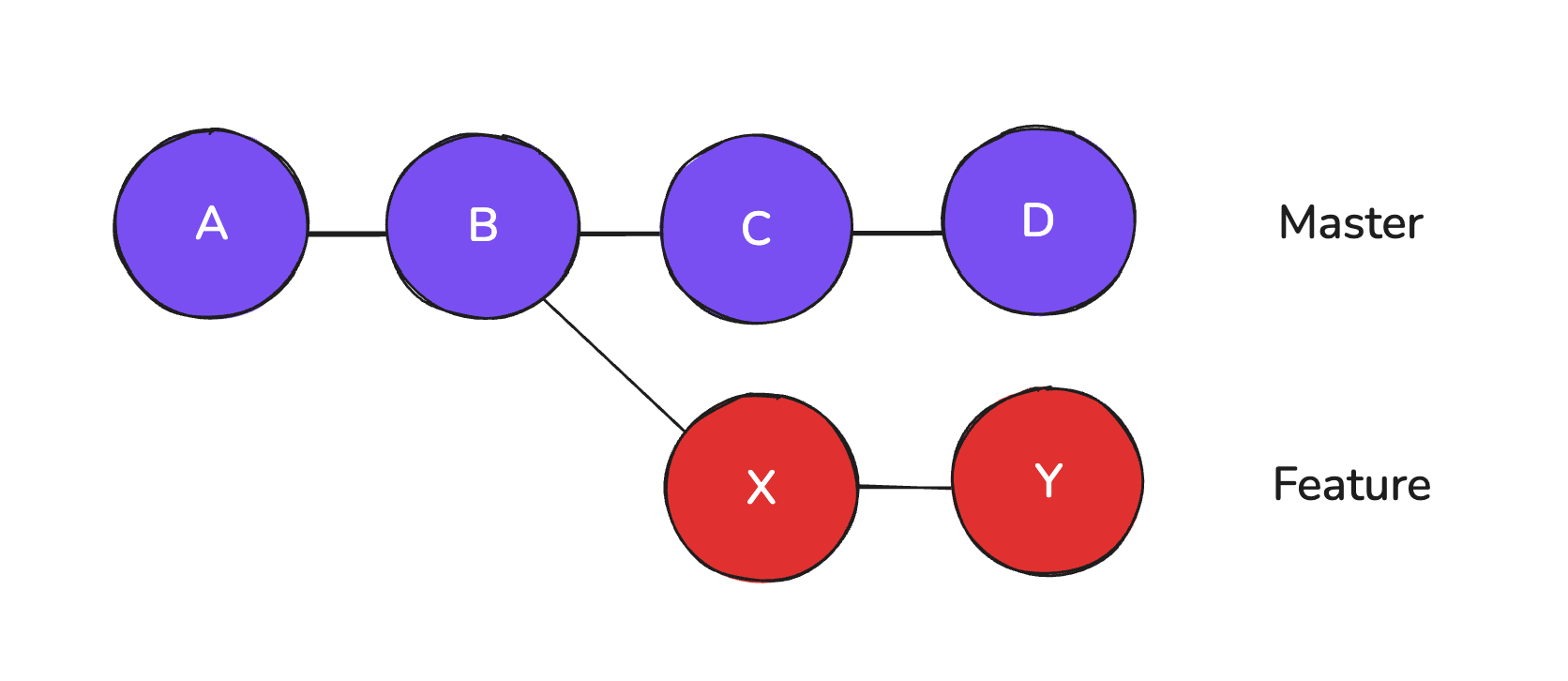
As soon as we pull the new changes on the local master branch and rebase the feature branch off of it, e.g. git rebase master then it will end up looking like this:
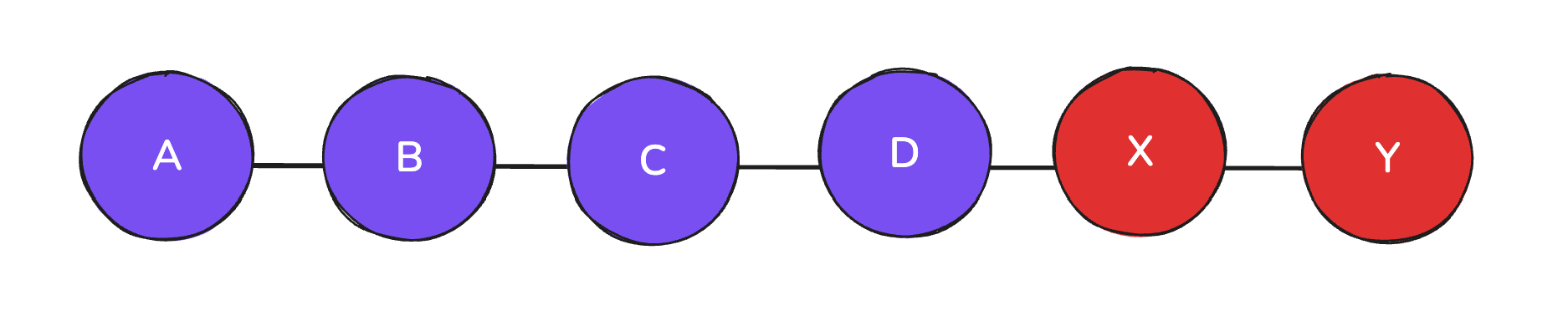
By rebasing, we're basically moving a branch from one location to another, but since commits are inmmutable what git does is create a new commit with the same changesets and metadata: author, timestamps, and so forth (hence a different hash).
As you can see as part of the rebase command we have the --interactive flag, which is useful for renaming or squashing commits, among other things.
So for example, if we'd want to squash the lasts two commits of certain branch, we'd run:
git rebase -i HEAD~2
Then an interactive window would pop up showing something like this:
pick 3608962a message two
pick 99dbe543 another one

# Rebase c940c11d..99dbe543 en c940c11d (2 comandos)
#
# Comandos:
# p, pick <commit> = usar commit
# r, reword <commit> = usar commit, pero editar el mensaje de commit
# e, edit <commit> = usar commit, pero parar para un amend
# s, squash <commit> = usar commit, pero fusionarlo en el commit previo
# f, fixup <commit> = como "squash", pero descarta el mensaje del log de este commit
# x, exec <commit> = ejecuta comando ( el resto de la línea) usando un shell
# b, break = parar aquí (continuar rebase luego con 'git rebase --continue')
# d, drop <commit> = eliminar commit
# l, label <label> = poner label al HEAD actual con un nombre
# t, reset <label> = reiniciar HEAD a el label
# m, merge [-C <commit> | -c <commit>] <label> [# <oneline>]
# .       crea un commit de fusión usando el mensaje original de
# .       fusión (o la línea de oneline, si no se especifica un mensaje
# .       de commit). Use -c <commit> para reescribir el mensaje del commit.
Keep in mind that the commits order is that in which the commits were made, the opposite of what you would get from git log.
From the git pocket guide's book:
Squash:
Make this commit changes part of the preceding one. To meld several consecutive commits into one, leave the first one marked pick and mark the remaining ones with squash. Git concatenates all the commit messages for you to edit.
Now, in order to squash them both, as you might have guessed we need to simply replace the word pick by squash, or by its shortcut (s):
pick 3608962a message two
s 99dbe543 another one

...
Then you can get rid of either the oldest or the most recent commit message, by hitting twice the d key would delete the desired line:
# Esta es una combinación de 2 commits.
# Este es el mensaje del 1er commit:

message two

# Este es el mensaje del commit #2:

another one
Finally it'll show a message saying that the rebase was applied successfully. If you run the log command again it will show only two commits:
git log -3
commit 672df5ed (HEAD -> master)
Author: Abraham <mail@gmail.com>
Date:   Tue Apr 19 10:21:15 2022 -0300

    message two

commit c940c11d
Author: Abraham <mail@gmail.com>
Date:   Tue Apr 19 10:20:30 2022 -0300

    message one
That's it.
Since after rebasing git creates a new commit, when it comes to pushing your changes you have to force it by passing in the -f flag. Otherwise both repositories, local and remote would have diverged, so make sure you run this command once you're done editing your commits:
git push -f
Now, in order to dig up the commit history in depth just in case something goes awry git has another feature, a different log called the reflog, which basically allows you to see a sequence of operations performed in your repository like commit, merge, pull, checkout, etc. You can use it by running the following command on the terminal:
git log -g
As you can see, the interactive rebase is a useful git feature that comes in handy if you are serious about your commits history, we don't want commits laying around the logs making it more difficult to find certain changes.
Comments